


Hi, I’m Jules. After I was laid off from my job as a product design director, I decided to take a sabbatical from corporate life to build my own product. I’m documenting that journey here on Substack, along with something I’m cooking for lunch each week.
So far, one of the most fun parts about building Al Dente has been tackling my own personal design process pet peeves along the way. In the past, it was often not practical, feasible or realistic to address these pet peeves, so I’d push them to the side for the sake of making progress. However, as the tools and tech change, I’ve enjoyed following my curiosity to explore where previously impractical wishlist items might be possible. Some of my biggest gripes at the top of the list? Tracking down existing screens, drawing them, then filling them with content.
To start high-fidelity design work, I would first need to:
Open the live product and take screenshots of the experience I was redesigning or branching off from
Send them to myself, then organize them in a design file
Hunt down any design files with matching frames that might or might not exist, then pull them in
Reconcile the existing frames with the screenshots, rebuilding any frames that were missing, out of date or inaccurate by hand
Adjust the content to suit the scenario I needed to design for
Repeat
This approach is fine, if not slow and tedious. But I’ve always had a couple of problems with it.
The screenshot problem
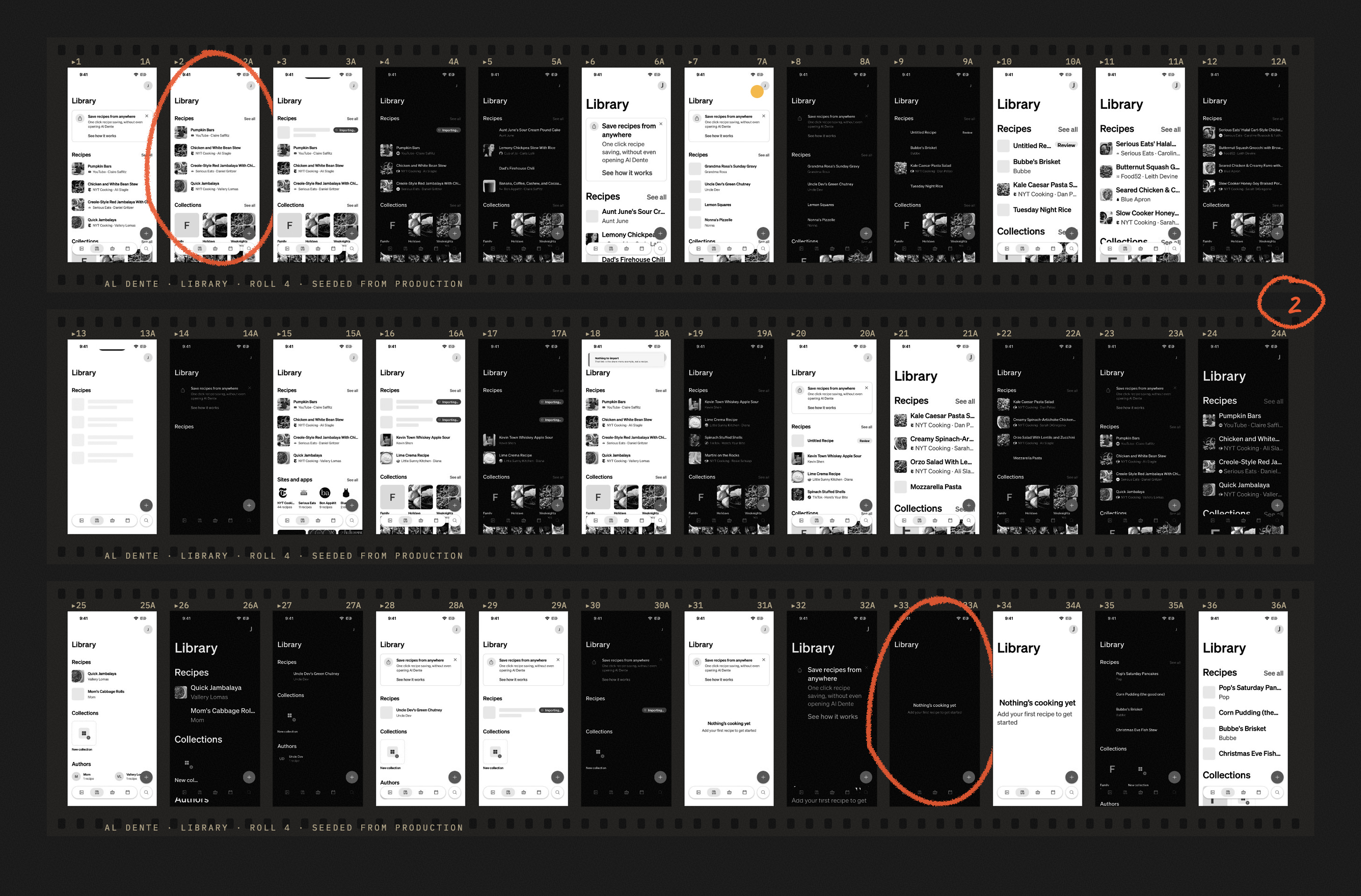
First off, the live product is difficult to precisely capture in screenshots.
Many users have completely different experiences on the same screen. A / B tests, by design, cause different users to see different things. A page might have branching logic that delivers a different variant of the experience depending on how much progress the user has made on a particular task or flow. A power user likely has much more content in their experience than a first-time user, who might see an empty state. They might also be eligible for different suggestions, upsells or other dynamic content depending on their goals or persona type. There are also error messages, accessibility settings, connection issues and a host of other variables that can create different permutations of the exact same page.
This creates a hefty amount of work just to track down all of the edge cases, if you can even find them all. With limited design bandwidth, a designer may only build out a few of these frames for each view, repeating the work for as many views as they have in their flow.
The content problem
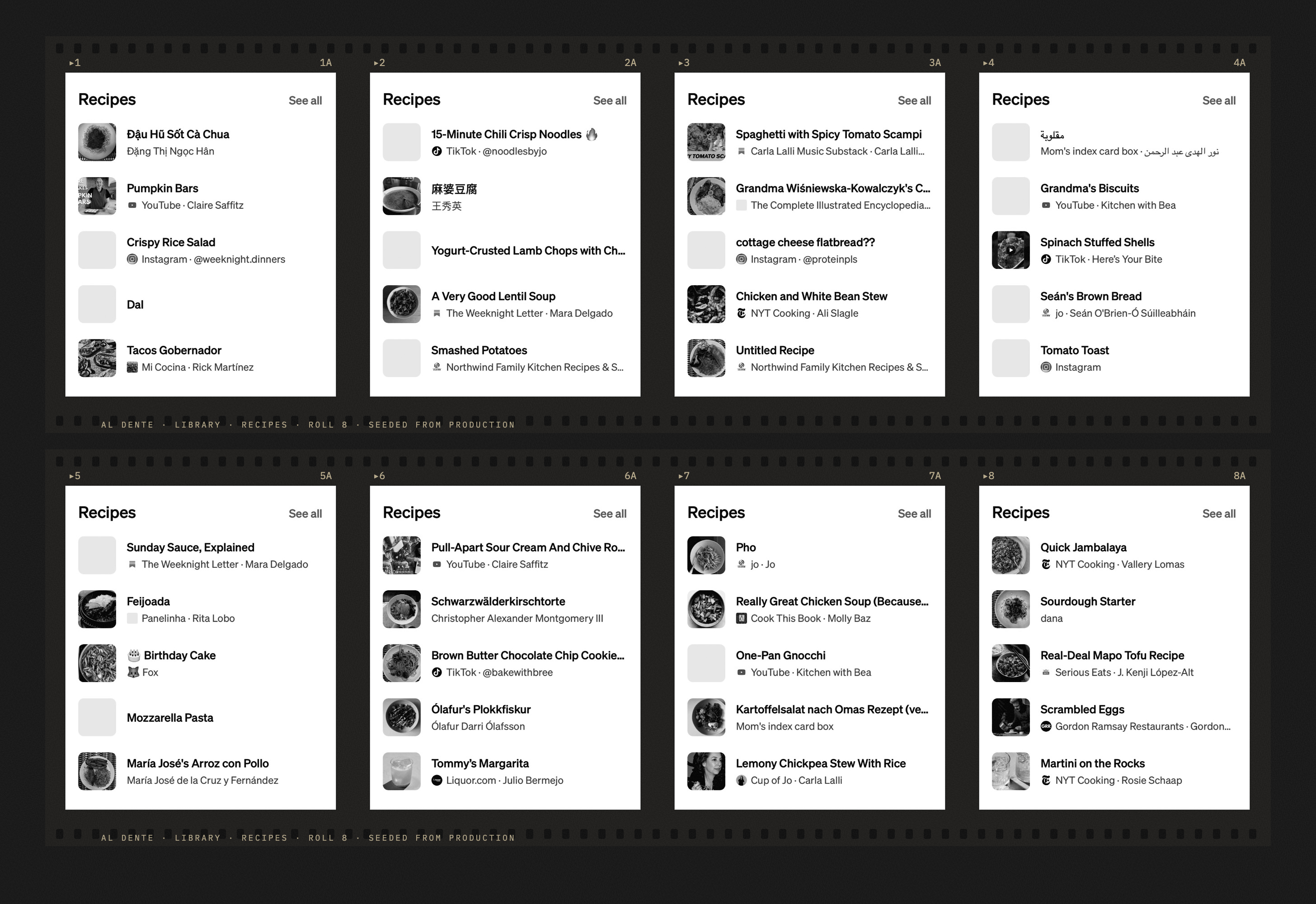
The second half of this problem is content.
Once they’ve figured out what the current source of truth is, a designer has to make a best guess at what content should belong in each instantiation. For example, at Credit Karma, we might have explored multiple variants for different user scenarios like:
High credit score user vs. low credit score user
User with many financial accounts vs. user with only a few accounts
User with many transactions vs. user with only a few transactions
User with debt vs. user with savings
Users who own vs. users who rent
Et cetera, et cetera, et cetera. Of course, within each of those axes, content length is also highly variable with addresses, institution names, transaction amounts and other supporting details. Any resulting design becomes a hodgepodge of somewhat arbitrary selections within an infinite matrix of possible views that a user might see. Even with plugins and workflow customizations, the screen production process has historically been fairly manual and the output still ends up rather divorced from reality.
So what
So, if you do it at all, what does all of that time-intensive production work buy you?
A design artifact that requires the viewer to step outside their own context and imagine themselves as an artificial user in an artificial scenario. It’s not their data. It’s not their situation. They’re evaluating what they might do, think or feel in a hypothetical, abstract way. But, as anyone who has run usability tests knows, there’s often a big gap between what someone says and what someone actually does.
I’ll admit, this is not necessarily a problem for everyone. Many designers do incredible design work on products for which they are not, and will never be, the target user. But I’m working on my own product, solving my own problems. When I’m evaluating a design or a feature, I want to see my own data: the recipes, authors and photos I recognize. I want there to be as small a gap as possible between my design work and what’s live in Al Dente, so I can increase the likelihood that my design decisions hold up in the real world.
Over the last few weeks, I’ve written about our stack, my development environment and how all of our tools fit together. Today, I want to share how those tool choices and investments allowed us to create a design process where we can safely develop the app using our real production data.
A note on databases
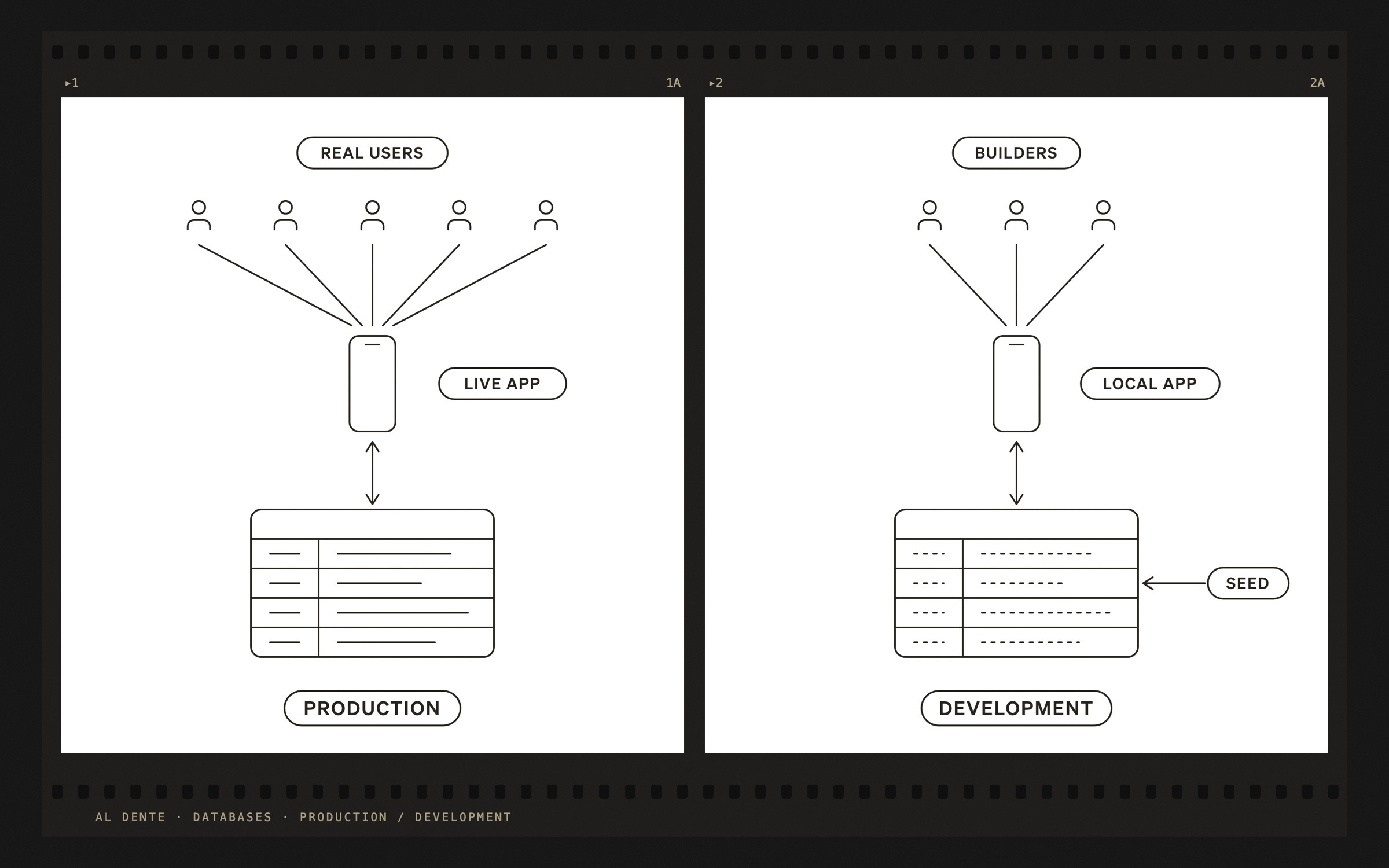
Before getting into the specifics, it’s important to understand how digital products use databases to store user data. Most products have at least two databases:
The production database
As the name implies, live apps are connected to production databases, saving the right data for each real user and serving it to them as needed. Teams treat the production database as sacred, as mistakes here can result in data loss or corruption for real people using the appThe development database
Conversely, development databases are used internally by product builders. Teams use development databases to safely build and iterate on apps without putting real users’ data at risk. In order to actually display information, a development database needs to be populated with placeholder data using a process called “seeding”
In addition to these databases, teams might also create staging, preview, test, analytics and backup databases to support different types of tasks in the course of their development work.
Seeding with production data
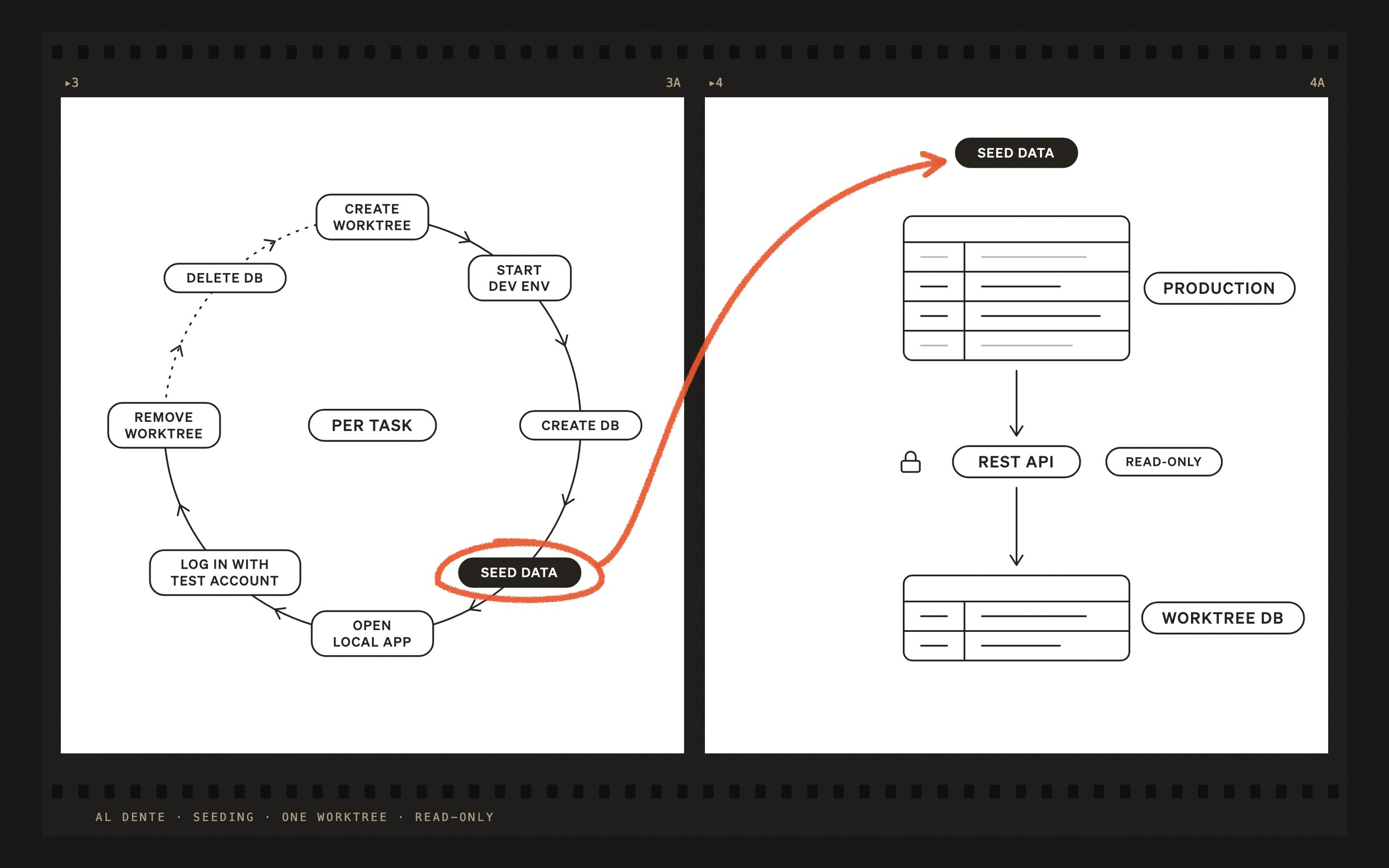
To address my pet peeve of designing with placeholder data, we needed to figure out a way to safely seed our household’s production data into our development database. Our approach relies on Git worktrees, which let you check out and work on multiple branches of the same repository simultaneously. Here’s how it works:
I create a new Claude Code session and worktree for each task
Kicking off the task starts the development environment
The back-end, Convex, creates a brand-new, empty development database specific to the worktree
The seed copies our Al Dente household data into Convex using the Al Dente REST API and saves it to our test accounts. This is a read-only process that can only access our household data
The dev environment spins up a local version of Al Dente on my machine and opens it either in the iOS Simulator or in a web browser
I log in with my test account to look at the work
I finish the task and remove the worktree
Convex deletes the corresponding database after about a week
This alone has been hugely helpful in eliminating the gap between “this should work” and “oh, wait, this looks really janky with real data” when designing and iterating on Al Dente directly in the codebase. Other times, working in the actual app is a little too slow or cumbersome. When I need to do more ambitious or open-ended exploration, I pair this technique with a design skill we call reference drawing.
Automating reference drawing

Within Al Dente’s broader design skill architecture, reference drawing is one of our most frequently used skills. Its primary purpose is to handle all of the time-consuming production design pre-work I described above so that we can start design tasks with screens drawn in real time from our codebase, the source of truth. Here’s how it works:
I create a new Claude Code session
I describe the design problem I’m tackling or an exploration I want to see
The reference drawing skill is invoked
It looks at the codebase to understand how the relevant screens are currently built
It grabs our design system assets
It draws each screen using the codebase and design system information, at a predefined phone dimension
It populates the content of the screen using the development database data pulled from our production data
I open the output and start my design work
This skill is called upon by other skills in the design architecture, which contain specific instructions that get invoked depending on whether I want to work in a design tool with a canvas or in an HTML artifact. For the last couple of months, I’ve reached for HTML artifacts for nearly every design task. I’m still wrapping my head around how versatile and powerful they can be.
Either way, I love that now I can skip screenshotting the app or guessing at content. Instead, I get to look at my own kitchen, and when something feels off, I know it’s the design and not the data.
The skill
If you’d like to build on our reference drawing skill, you can use the markdown file below as a jumping off point.
---
name: ad-ref-drawing
description: >
  Reference facts for drawing Al Dente screens outside the app, in Paper or a Claude
  Artifact: the phone and its status bar, the keyboard, tokens and type, seeded content,
  images, and icons. Reference only. Loaded by ad-tool-paper and ad-tool-claude-artifact
  before they draw anything.
---

# Drawing the app

Read [docs/DESIGN.md](../../../docs/DESIGN.md) first.

## Start from what exists

Draw every piece the app already has from its source: the screen's route in
`services/app/app/`, its `page-components/<feature>/`, and the shared components
in `services/app/components/`. Invent only what the exploration is about.

## The phone

- iPhone 16 Pro, **402 × 874 pt**. Never measure from a screenshot's pixels.
- **Status bar**: the image in `assets/`, 62pt tall. Over a photo, use the white
  version, `status-bar-dark.png`.
- **Dynamic Island**: not drawn unless someone asks for it.
- **Keyboard and system UI** (share sheet, alerts) are screenshots from
  `assets/`, captured from an iPhone 16 Pro simulator on iOS 27, never redrawn.
  If one isn't there, capture it, crop it, and save it as
  `<thing>-<light|dark>.png`. Use
  `xcrun simctl status_bar <udid> override --time 9:41` for a clean status bar.
  The simulator draws the keyboard light in dark mode too.
  - In an interactive prototype, show the keyboard whenever the device would.
  - On a static board, draw it only when it explains the layout: a detached
    sheet with `keyboardBehavior="interactive"` rests on the keyboard, 296pt
    higher than without it.
- **Scroll**: a static board shows the whole scroll, never shorter than 874,
  with floating bars (tab bar, Add button) at the bottom. In a prototype, the
  screen scrolls inside the phone.
- **Corners**: Apple's sheet corners are continuous (a superellipse, drawn with
  `clip-path`); ours are a plain circular radius.

## Tokens

Export the app's tokens with
`node .agents/skills/ad-ref-drawing/scripts/export_tokens.mjs [--format css]`
and draw with them: no loose hex, pixel sizes or font names.

- Use the token the component uses. A component on `SPACE[3]`, `RADIUS.m` or the
  `danger` colour role draws with `--space-3`, `--radius-m` or
  `--color-danger-default`. Some values, like a 1px border or a negative margin,
  have no token. Copy those numbers from the component.
- A control height is `min-height` where the component sets `minHeight`, and a
  fixed width and height where it sizes a square (`IconButton`, `IconTile`).
- Text sized from its container, like avatar initials, takes the size the
  component computes.
- A CSS `dashed` border is denser than the app's. Draw an SVG stroke with a
  computed `stroke-dasharray`.

## Content

- Real content from the local seed (`/ad-dev --convex`), read with
  `cd services/backend && npx convex data <table>`. Never invented, and never
  live data from the Al Dente connector. For a specific state (an empty library,
  a very long title), use `/ad-generate-account-data`.
- `npx convex data` prints newest first; take the screen's order from its query.
- Draw what the screen does with this data, not what the component could do:
  sections under their cap, rows with no source line, and so on.
- For a long list, draw it all only when its length is the point, as on Library.
  Otherwise stop at about eight rows.
- Content fetched live from outside, like a publisher's recent posts, is drawn
  as a snapshot and labelled as one.

## Images and icons

Read [images.md](images.md) before using any image.

Never draw an icon by hand. Pick it by DESIGN.md's Icons rules, then extract it
from the Central package the app ships, by the name in the app's import
(`central-icons/IconHomeDoor` is `HomeDoor`):

```bash
.agents/skills/ad-ref-drawing/scripts/icon_path.py --size 20 --fill "<colour>" HomeDoor Camera1
.agents/skills/ad-ref-drawing/scripts/icon_path.py --size 24 --fill "<colour>" --filled CircleCheck
```

Add `--filled` when the app imports from `central-icons-filled`. Size it from
the `--icon-text-<step>` or `--icon-control-<step>` token for what it sits with.
Lunch
This week for lunch, I made Yasmin Khan’s Roasted Cauliflower Soup from NYT Cooking.
See you next week!
Nice! Is the reference drawing skill itself something you wrote, and is it open source?