


Hi, I’m Jules. After I was laid off from my job as a product design director, I decided to take a sabbatical from corporate life to build my own product. I’m documenting that journey here on Substack, along with something I’m cooking for lunch each week.
In the year 2026, in the age of Opus and Fable and Astra and Sol, what technical skills and concepts are still worth learning? In the grand scheme of things, it seems like we moved from “Should designers code?” (maybe!) to “Should engineers code?” (not anymore!) pretty abruptly. With the cumulative knowledge of decades of software engineering expertise at an LLM’s fingertips, it’s now easy to imagine waving your virtual hand at any conceivable problem space and implementing a solution instantly. In practice, though, producing code is not really a designer’s primary challenge.
Early on in my career, learning how “to code” turned out to be a lot more approachable than I expected. I wanted to learn the basics of HTML, CSS and jQuery to create my own portfolio site, so I took courses on Codecademy and Treehouse. The lessons were presented in friendly and approachable sandbox environments, where I could type into a small code editor on the left and immediately see the results render on the right. The immediacy was immensely satisfying, as was feeling like I had a grasp on the concepts. They were logical to me. They made sense.
You know what didn’t make sense at all? Every other part of getting my portfolio published. There were a seemingly untold number of steps, services, accounts and technologies that needed to be strung together to actually get my simple website online. Naively, I had assumed that the “coding” part would be the biggest hurdle. Instead, it was navigating the complex web of version control, hosting, node modules, SSH keys, environment variables and about a thousand other interrelated parts. Most of this navigation took place inside my terminal, a foreign and intimidating application that the intro courses glossed over entirely.
Nearly a decade and a half later, knowing how to use a terminal, set up a development environment and work with Git remain the most evergreen technical skills I’ve built. During my last year of work, many of my most valuable contributions were AI enablement: guiding my fellow design leaders through development environment setup so they could start playing around with Claude Code.
Arguably those activities would be less valuable to perform today, as Claude Code and Codex are now both available through desktop applications. Consumer-friendly agents like Grok Bot, Instinct, Muse and Dot are pushing technical accessibility even further, abstracting away the complexity of picking models and fiddling around with effort. These evolutions are great for getting technology into more people’s hands and empowering them to build awesome stuff.
However, layers of abstraction come and go. Major advancements often arrive at the most technical layer first, and, in my opinion, it’s worth getting comfortable in that space.
Development environment basics
In my last post, I discussed how we chose some of the primary tools in our stack as we build Al Dente. Since then, I traded in my computer for a new MacBook Pro and wanted to document the process of getting it set up from scratch to run our local development build. Like all things in software building, there are infinite setups and multiple ways to achieve the same end result, each with pros and cons. Here’s my setup.
Disclaimer
This post is not a guide or a tutorial. My goal is to exhaustively capture the steps I took to get set up, to paint a realistic picture of how long and complex these processes can be.
If you want to try a similar approach or technique, be sure to check each tool for the latest documentation, as commands can change frequently.
To make this post a little easier to follow, I also created an interactive Al Dente Tool Explorer. It maps out the tools we use and explains how they fit together, with a glossary and a prompt builder to create your own tool map.
Ghostty
The first thing I downloaded was my preferred terminal, Ghostty. Macs come with a built-in Terminal application, which works fine but isn’t as polished or easy to use. Before Ghostty, I used iTerm 2. In the next section, I’ll cover some extras I use to customize my terminal experience even more.
If you’re brand new to using a terminal (no shame in that!), you might want to read a hands-on guide like Josh Comeau’s excellent post The Front-End Developer's Guide to the Terminal to get familiar with the basics.
Xcode
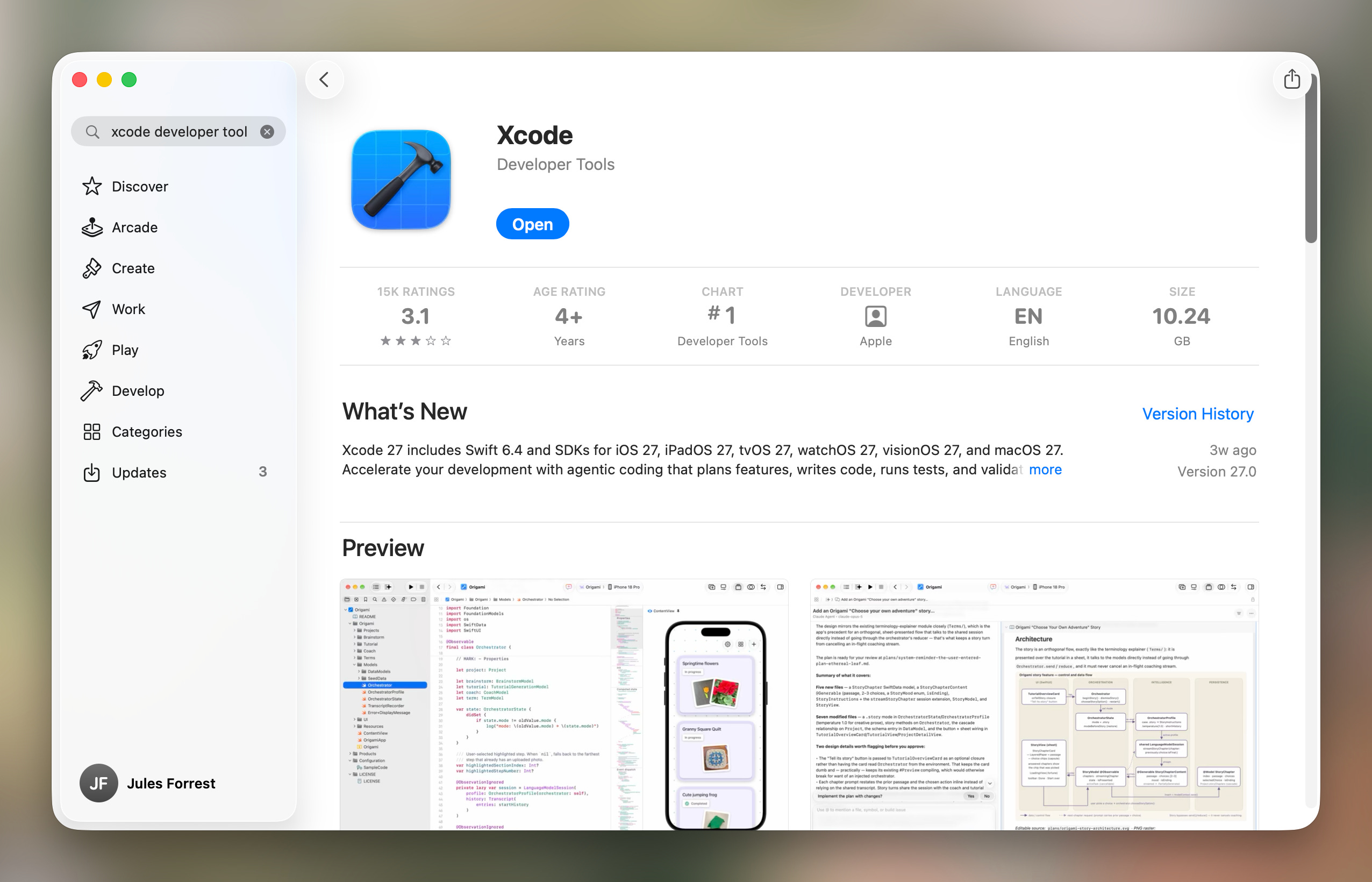
Next, I downloaded Xcode from the App Store. Xcode is Apple’s toolkit for developing, testing and distributing apps on its platform. We need Xcode because we’re building Al Dente for iOS. If we weren’t working on a mobile app, we would just install the Xcode Command Line Tools, which is a smaller package that is faster to install. I’m not sure why the Command Line Tools don’t come built into your Mac, but you can read more about installation here.
Claude Code
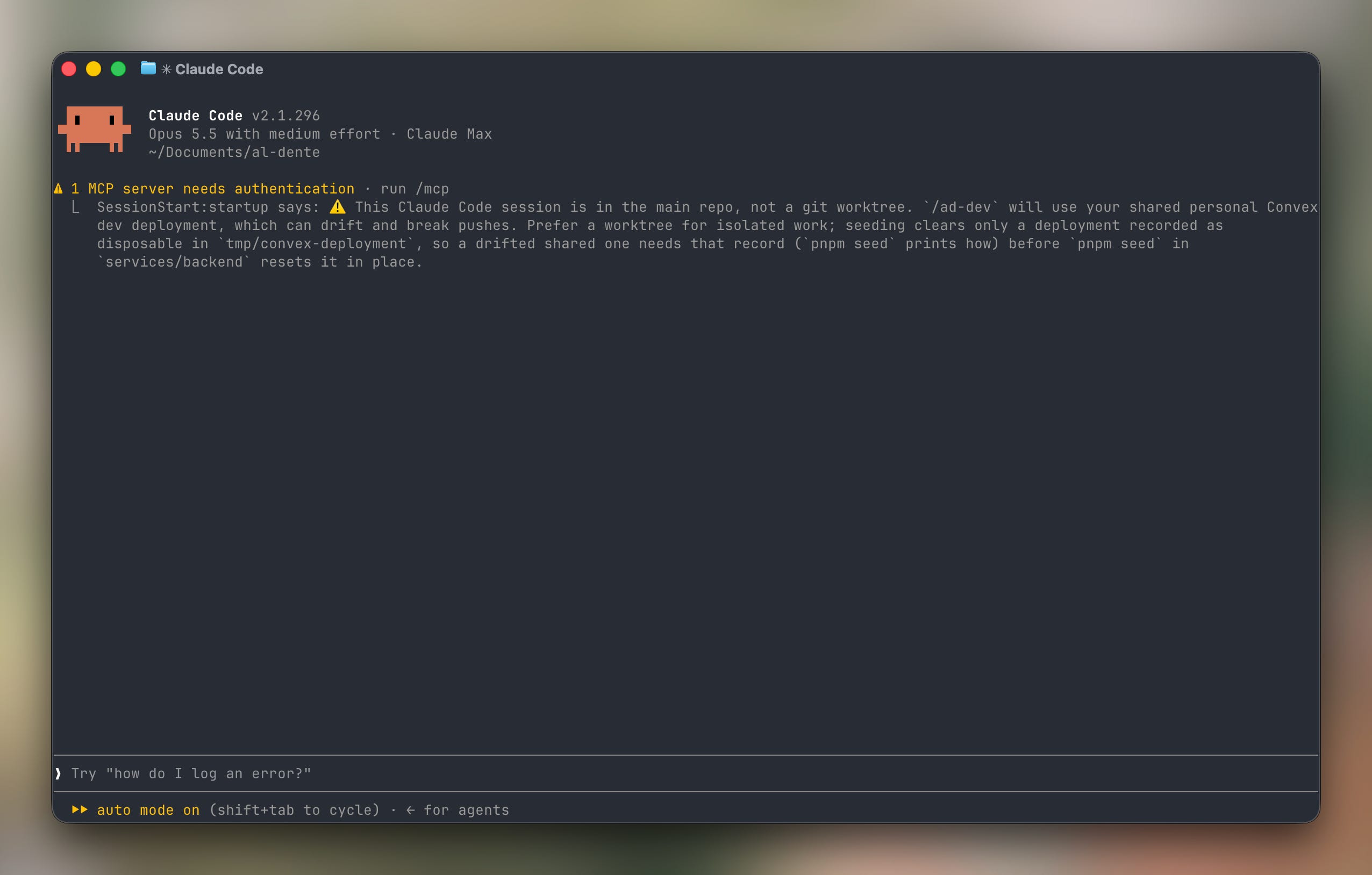
For my own personal development work, I don’t switch between different AI providers very often (though we do use an AI gateway in the product so we can leverage different models for different tasks in production). I started off with Claude Code and, barring any usage limits, it’s what I stick with. I opened Ghostty and installed it using this command:
curl -fsSL https://claude.ai/install.sh | bashHomebrew
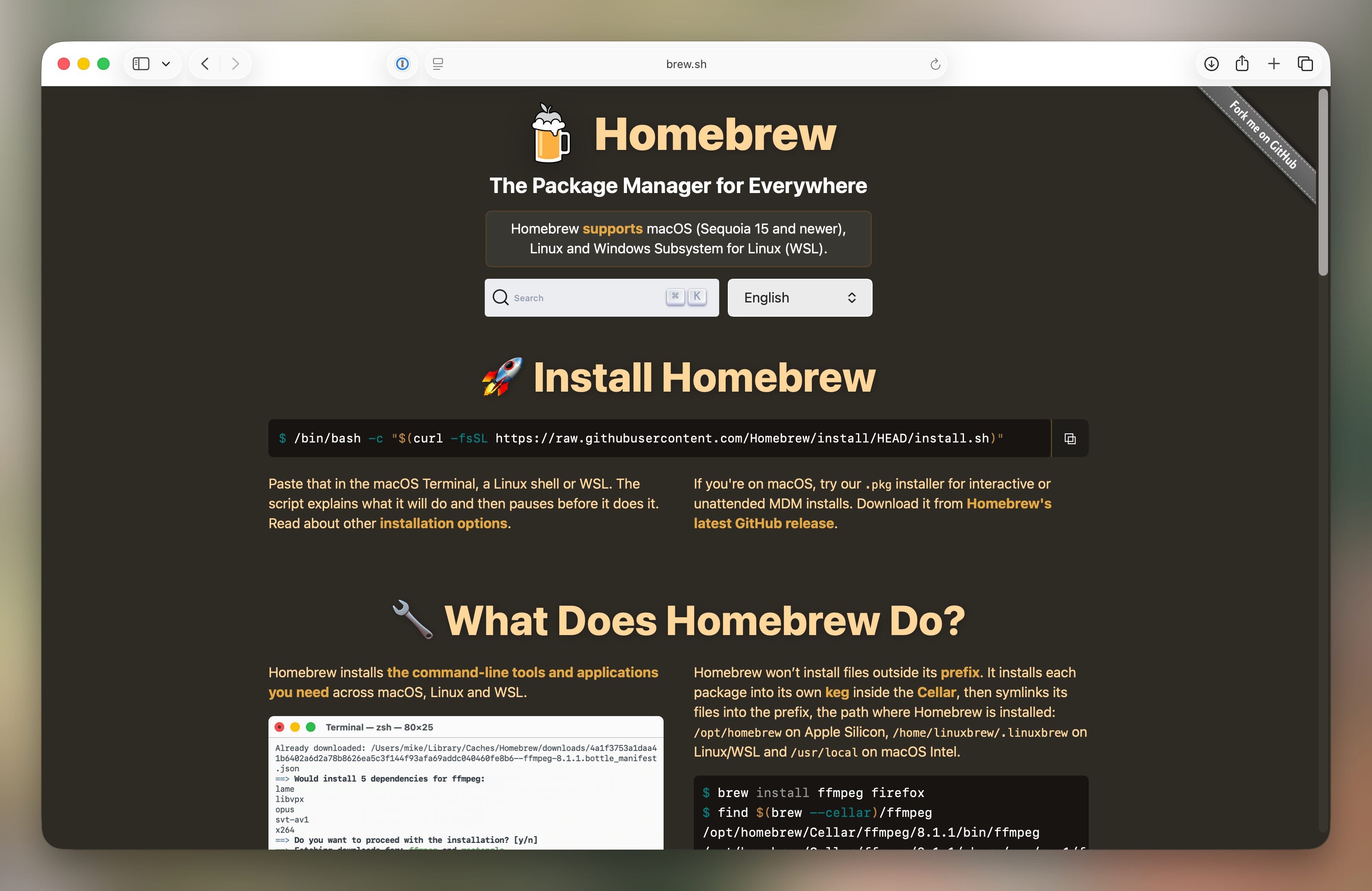
After Claude, I installed Homebrew:
/bin/bash -c "$(curl -fsSL https://raw.githubusercontent.com/Homebrew/install/HEAD/install.sh)"Homebrew is a ubiquitous package manager that allows you to install other command-line tools and applications.
GitHub
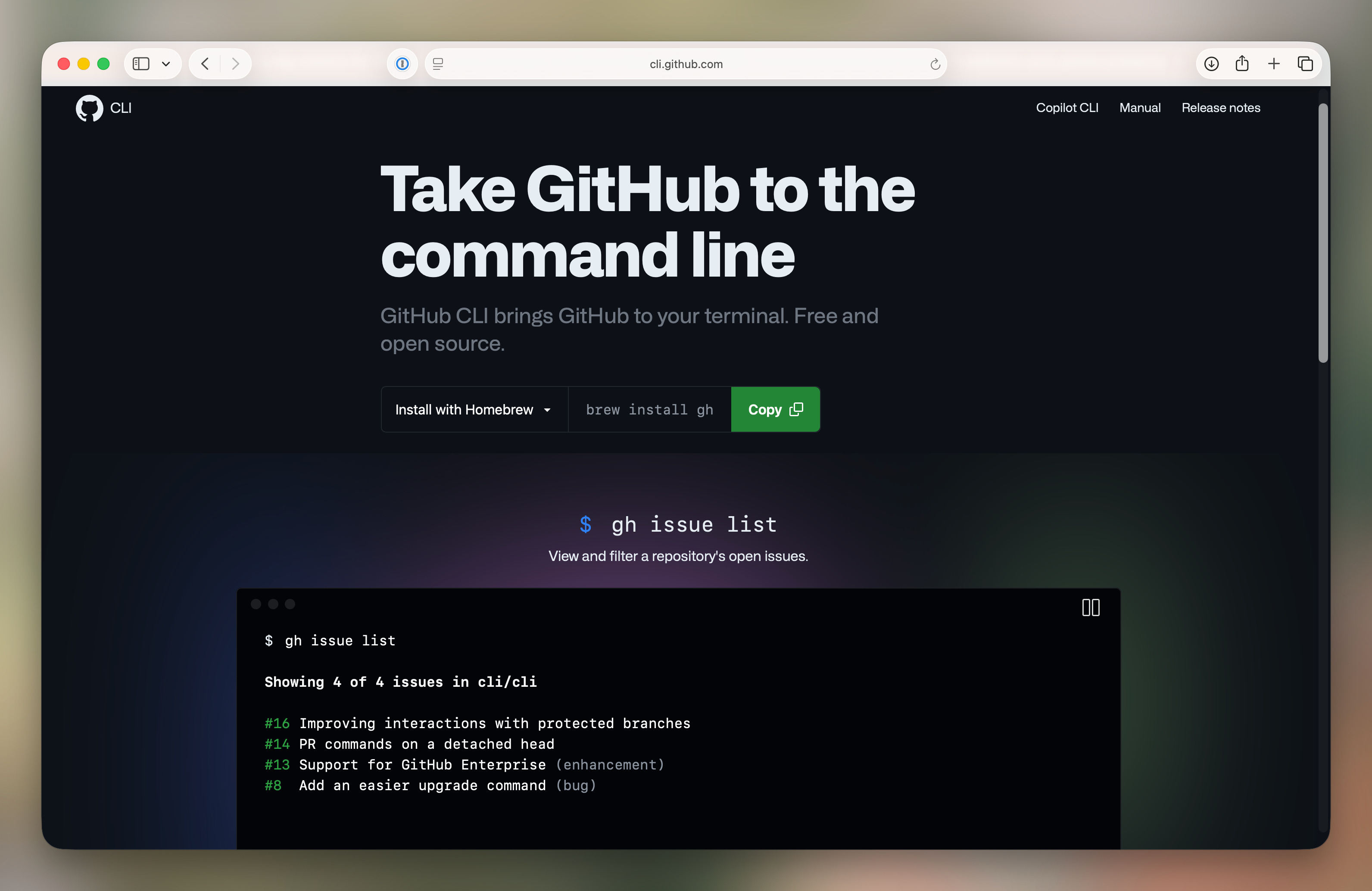
Authenticating my GitHub account to a new computer is always my least favorite task because of how confusing I find SSH and GPG keys. No matter how many times I’ve done it, I always end up with 5 different tabs, sifting through 5 different parts of the required instructions.
This time, I decided to try GitHub’s command line tools. I installed them using Homebrew’s brew command:
brew install gh After that, it was delightfully simple to authenticate:
gh auth loginWith all that general computer stuff out of the way, it was finally time to pull down the Al Dente codebase.
gh repo clone blockedbydesign/al-denteIt probably still sounds like a lot of steps, but this is way easier than it used to be.
Terminal ergonomics
The beauty and the curse of using a terminal is the infinite flexibility and customization options. Straight out of the box, terminals are very powerful but can be clunky and confusing. After I got my basic environment setup done, I set up the following “nice-to-haves” to make working with my terminal, Ghostty, a little more pleasant to use.
Herdr
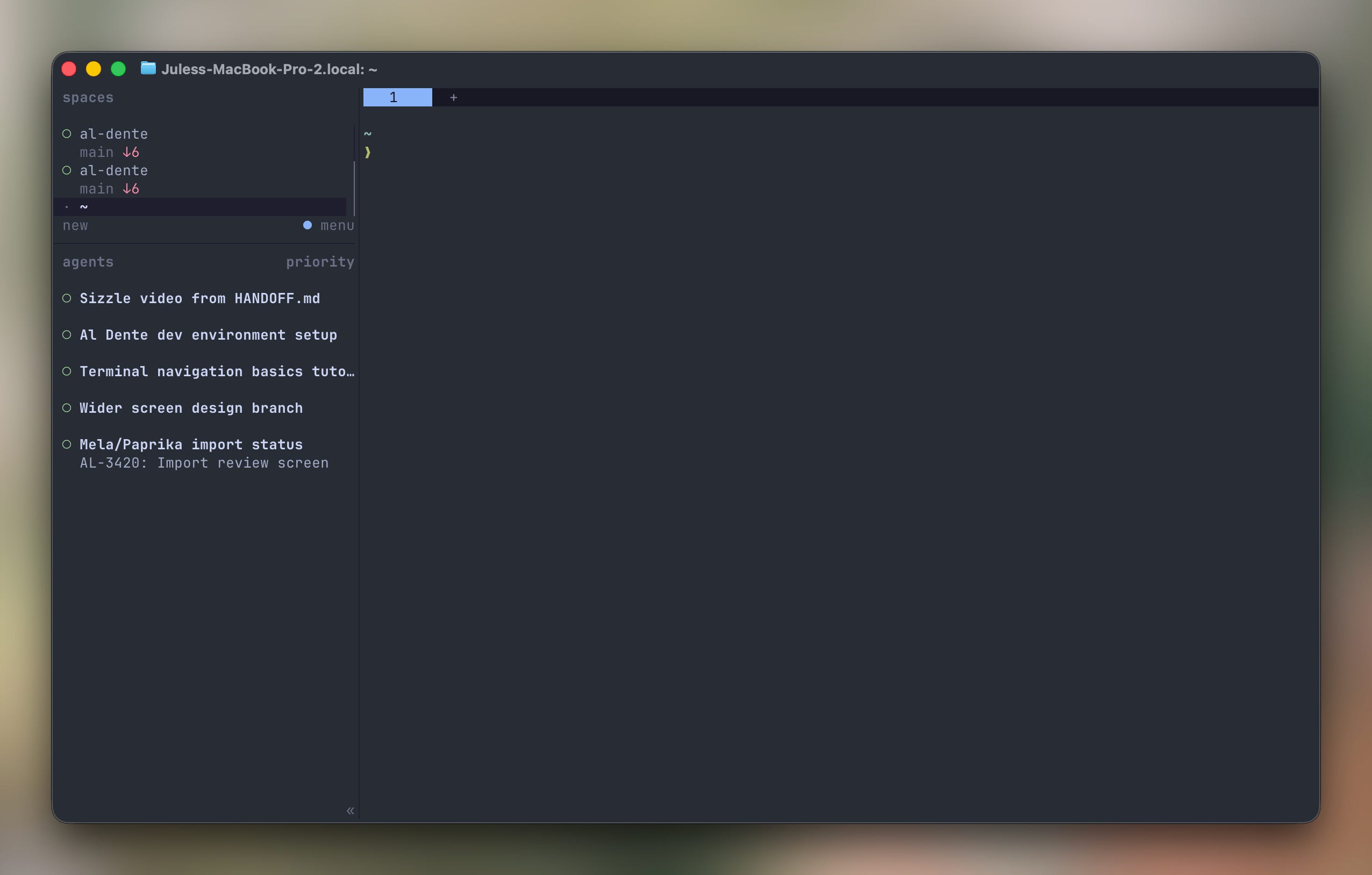
In general, I’m trying to document my specific choices in this post and not make recommendations. Herdr is the exception. It’s an excellent tool for designers who want to work with AI through a terminal, because it vastly improves the experience of multitasking with multiple agents simultaneously. If an agent management wrapper sounds useful to you but you don’t want to work in the terminal, Conductor and T3 Code are reasonable desktop alternatives.
To multitask without a tool like Herdr, you would need to:
Open a new tab in your terminal
Navigate to your project folder
Activate your AI agent of choice with a command like
claudeorcodexStart working on your task
This is fine when you’re focused on 1-2 things at a time because you can easily hold all of the context of what’s being worked on in your head. As the number of independent tasks creeps up, though, it gets hard to understand which tabs are doing what, which are still working and which are blocked by something you need to review.
Herdr offers an agent-friendly terminal layout that allows you to quickly see the status of all of your different agents at once, with helpful context about what they’re each working on. Instead of activating Claude or Codex in each tab, you navigate to your project folder first and activate Herdr. Then when you go to use Claude or Codex, Herdr calms the chaos with its useful agent management wrapper.
I also like that Herdr makes the terminal behave a little bit more like a normal desktop application, where I can use my cursor to click around and select text instead of having to navigate everything through keyboard commands.
First, I installed Herdr:
curl -fsSL https://herdr.dev/install.sh | shWhen I go to work on Al Dente, I activate Herdr:
herdrThen, once inside Herdr, I activate Claude:
claudeOh My Zsh
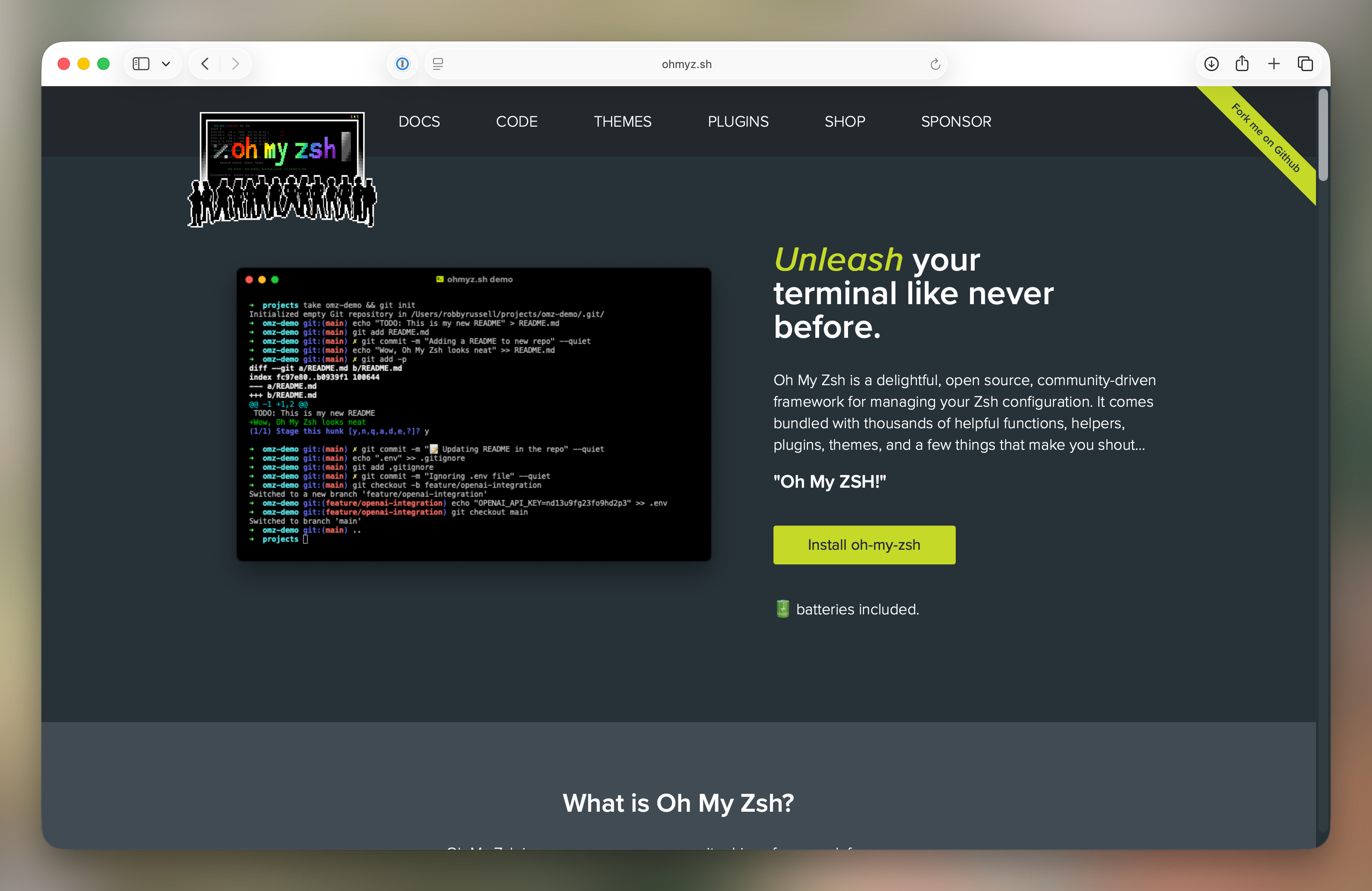
When you open a terminal app like Ghostty, you’re actually using two programs. The terminal is the window that you can see and interact with. The shell is the program inside it that reads each command and runs it. Macs come with a shell called zsh, and it reads a settings file called .zshrc every time you open a new window. Oh My Zsh is a popular starter kit for that file, which provides sensible defaults and makes plugins easy to add.
sh -c "$(curl -fsSL https://raw.githubusercontent.com/ohmyzsh/ohmyzsh/master/tools/install.sh)"Starship
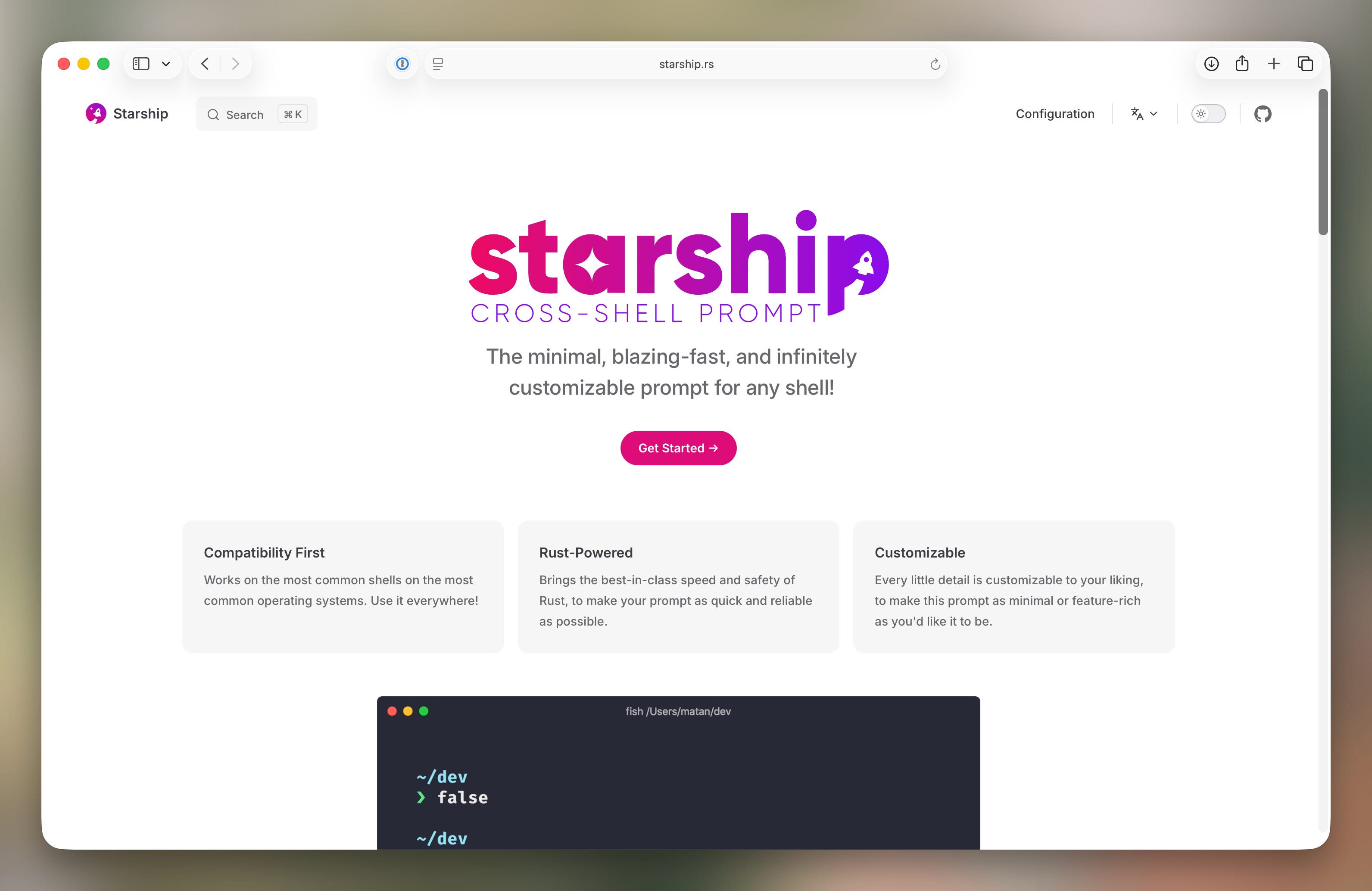
Starship is a tool that improves the design of the text before your cursor in the terminal. It shows useful context at a glance, like the current folder, the Git branch and whether you have uncommitted changes.
curl -sS https://starship.rs/install.sh | shAl Dente specifics
The remaining development environment setup steps are specific to Al Dente, but I wanted to include them here for the sake of posterity.
Mise
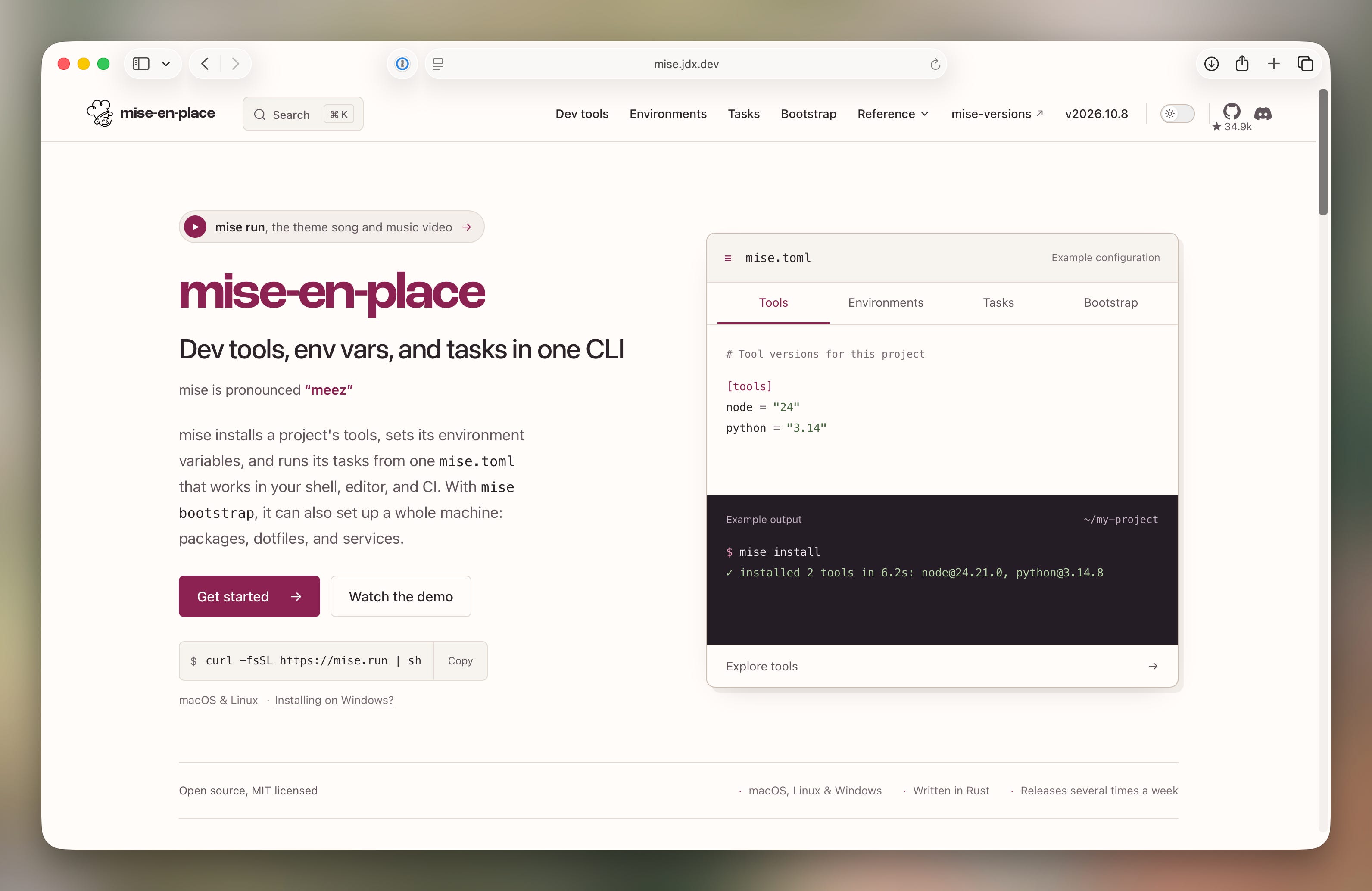
Mise is yet another tool to, you guessed it, help you manage your tools. Under the hood, any modern build project has layers upon layers of dependencies, and integrating them all can require careful coordination of various compatible versions. When the wrong versions of tools are matched up in a project, it can break things in confusing ways.
While Homebrew manages tools installed at the computer level, we use Mise to manage things at the project level. Our Mise setup installs a whole bunch of Al Dente-specific tools and languages like Node, Python and Java. It also makes sure the right versions are switched on when working in the Al Dente folder. If I work on other projects on my computer with different setups or tool versions, Mise avoids conflicts by keeping each project’s specific requirements cleanly separated.
Side note
Before Al Dente, my projects primarily required Node, a program that lets you run JavaScript on your computer instead of a browser. That’s useful because a lot of modern web and app tooling is written in JavaScript. In the past, I would have installed Node Version Manager (also known as nvm) to install Node instead of using a more broadly applicable tool like Mise.
I installed Mise through Homebrew:
brew install miseThen ran the following commands so Mise kicks in when needed:
echo 'export PATH="$HOME/.local/share/mise/shims:$PATH"' >> ~/.zshenv
echo 'eval "$(mise activate zsh)"' >> ~/.zshrc
exec zsh
Then ran Mise:
mise installBlammo
Blammo isn’t a tool per se, it’s a shortcut command I added to my .zshrc configuration file. I’m including it here as an example of how you can continue to customize without taking on any additional dependencies. Don’t ask me why I picked the term “blammo.” There is no good reason, I just like whimsy.
I set up the blammo command because I wanted to be able to kick off new tasks with a single word. I have it set to jump to the Al Dente project folder, pull down the latest code, and start a new Claude Code session in its own worktree. I used the following snippet to string those commands together:
cat >> ~/.zshrc <<’EOF’

# Jump into al-dente, pull latest, and start Claude in a fresh worktree.
blammo() {
  cd ~/Documents/al-dente || return
  local pull_output
  if ! pull_output=$(git pull 2>&1); then
    print -r -- “$pull_output” >&2
    return 1
  fi
  claude --worktree
}
EOF
exec zsh
Now, when I’m in Herdr and I want to work on a new task, I run this command:
blammoIt’s been a surprisingly great quality-of-life improvement.
Final steps
Before I could finally (finally!) get Al Dente to build locally on my new computer, I needed to sign in Convex and copy over our secret keys and environment variables. All told, this entire setup took about half a day.
Like I said earlier, building through the terminal is not the right way to build. If this whole process sounds pretty complicated, it’s because it is! We’re lucky that desktop and mobile tools for building have come so far, and continue to get better with each release. However, building for production is still not as easy and painless as a lot of content out there might lead you to believe, which is where learning these skills will continue to serve designers very well.
If you’re curious about what a setup like this might look like for your own project, the Al Dente Tool Explorer also includes a prompt builder to help you create your own tool map.
Lunch
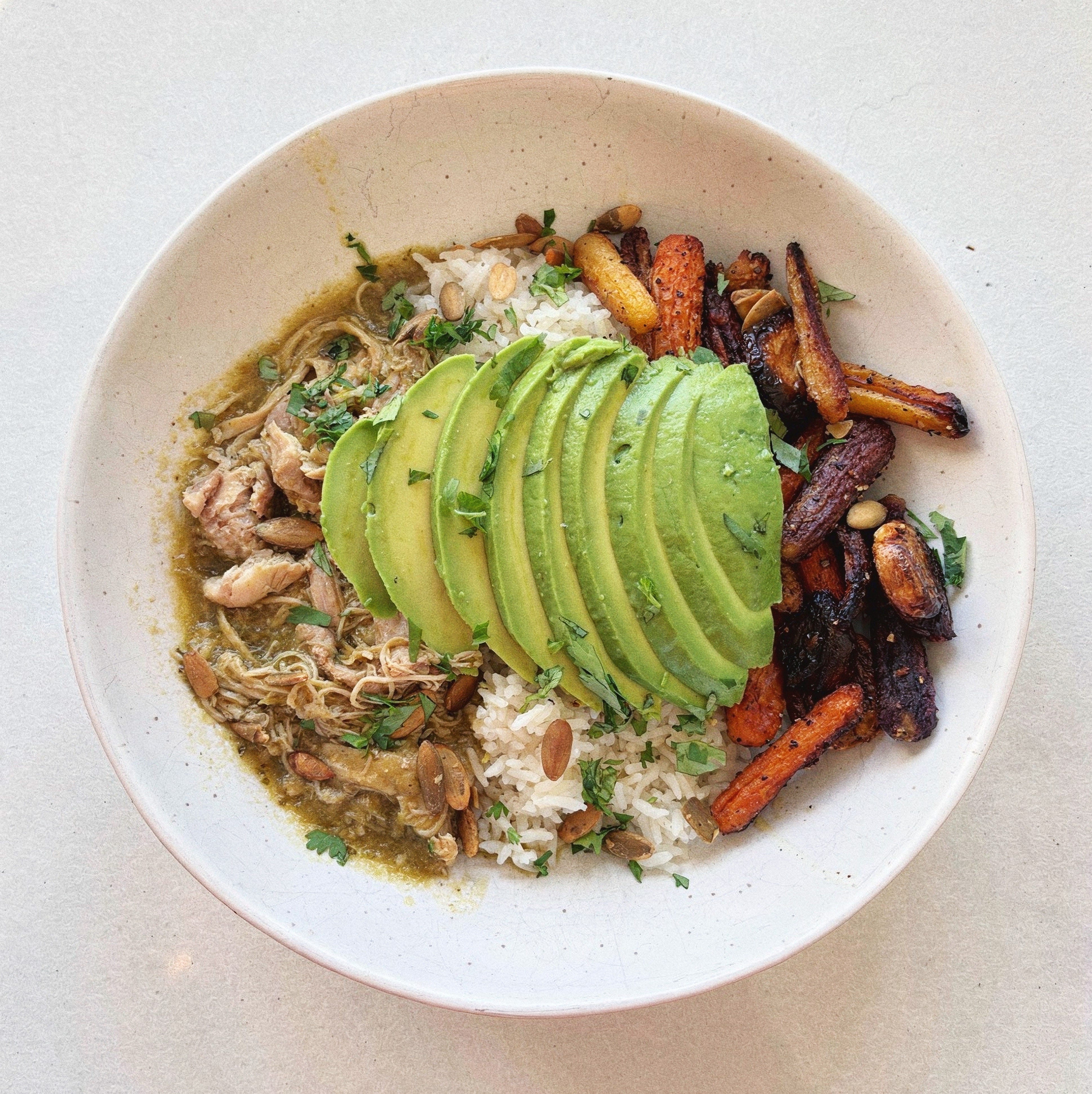
This week for lunch, I made J. Kenji Lopez-Alt’s Chicken Chile Verde Pressure Cooker Recipe from Serious Eats.
See you next week!